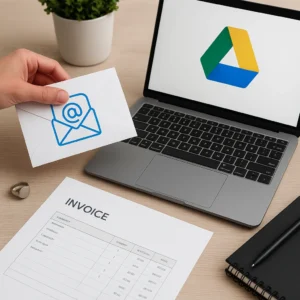
InvoDrive runs entirely inside your Google environment – Gmail and Google Drive. To enable automatic invoice scanning and organization, you need to securely connect your Google account.
Step 1: Log in with Google
Go to the InvoDrive homepage or login screen.
Click the “Sign in with Google” button.
Choose the Gmail account where you receive your business receipts and invoices.
Tip: We recommend using your business email, not a personal one, to keep everything clean and focused.
Step 2: Grant the required permissions
Google will ask you to approve the following permissions:
Read access to Gmail – needed to detect invoices in your inbox.
Write access to Google Drive – to store documents in structured folders.
Basic account info – used to identify your account (email, name).
Important:
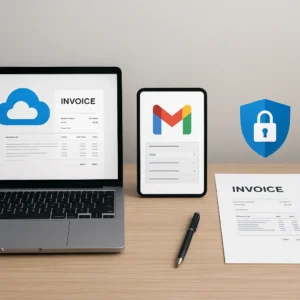
InvoDrive does not store or transfer any of your data to external servers. Everything stays within your own Google account.
Step 3: Confirmation and first setup
Once you approve access, you’ll be redirected to InvoDrive. A message will confirm:
“Successfully connected to your Google account.”
You’ll now see the initial setup screen:
Select a start year for scanning (available in Advanced / Pro plans)
Choose the language of your invoices
Access your personalized dashboard
FAQs:
Can I switch accounts later?
Yes! You can disconnect and reconnect a different Gmail account anytime from your dashboard.
Is my data safe?
Yes. InvoDrive is a Google-verified Web App and has passed CASA Tier 2 security audit. Your data never leaves Google’s secure environment.
Where are my files stored?
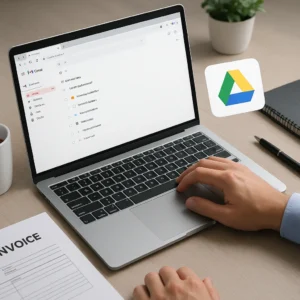
InvoDrive creates a folder called InvoDrive inside your Google Drive, with subfolders by year > month > supplier.

 Continue with Google