Quick answer
If you need to save invoices from Gmail into Google Drive reliably, you have three practical approaches: general cloud automation platforms, native Gmail add‑ons, and privacy‑first Drive solutions that operate from your Google account. Cloud platforms offer flexibility and integration breadth, native add‑ons give tight Gmail context and convenience, and privacy‑first Drive tools prioritize data residency and simple one‑click invoice setup without external servers.
Why this comparison matters for your business
You want consistent, searchable records of invoices and receipts so bookkeeping is faster, tax time is simpler, and expense reports are complete. Whether you’re a freelancer, small business owner, or part of a finance team, you’re deciding between flexibility, simplicity, and privacy. This article compares the three approaches across setup, reliability, privacy, organization, and cost so you can pick the right path for saving invoices from Gmail and organizing them in Drive.
Side‑by‑side comparison
Below is a concise comparison of the core differences that matter when you want to save Gmail attachments automatically and organize invoices in Drive.
| Criteria | Cloud automation platforms | Native Gmail add‑ons | Privacy‑first Drive solutions |
|---|---|---|---|
| Primary strength | High flexibility and many integrations | Contextual actions inside Gmail, fast filters | Privacy (data stays in your Google account) and simplicity |
| Setup time | Medium to long (map flows, test triggers) | Short (install add‑on, configure rules) | Shortest (one‑click invoice setup and folder rules) |
| Privacy | Often routes data through external servers | Varies; some use your account, others external | Designed to keep files and metadata in your Google Drive only |
| Organization options | Flexible: custom folder logic, multi‑step renaming | Good: label‑based rules and direct saves | Strong: supplier/month/year folders, consistent file naming |
| Reliability | Depends on intermediary uptime and quotas | Generally reliable if built for Gmail | Reliable with Google‑native permissions and quotas |
| Best for | Complex workflows or many integrations | Quick in‑Gmail automation | Privacy‑conscious users who want simple bookkeeping automation |
The table gives a quick framework. Read on for practical guidance, examples, and the trade‑offs that matter for everyday bookkeeping.
Key decision points: what to evaluate
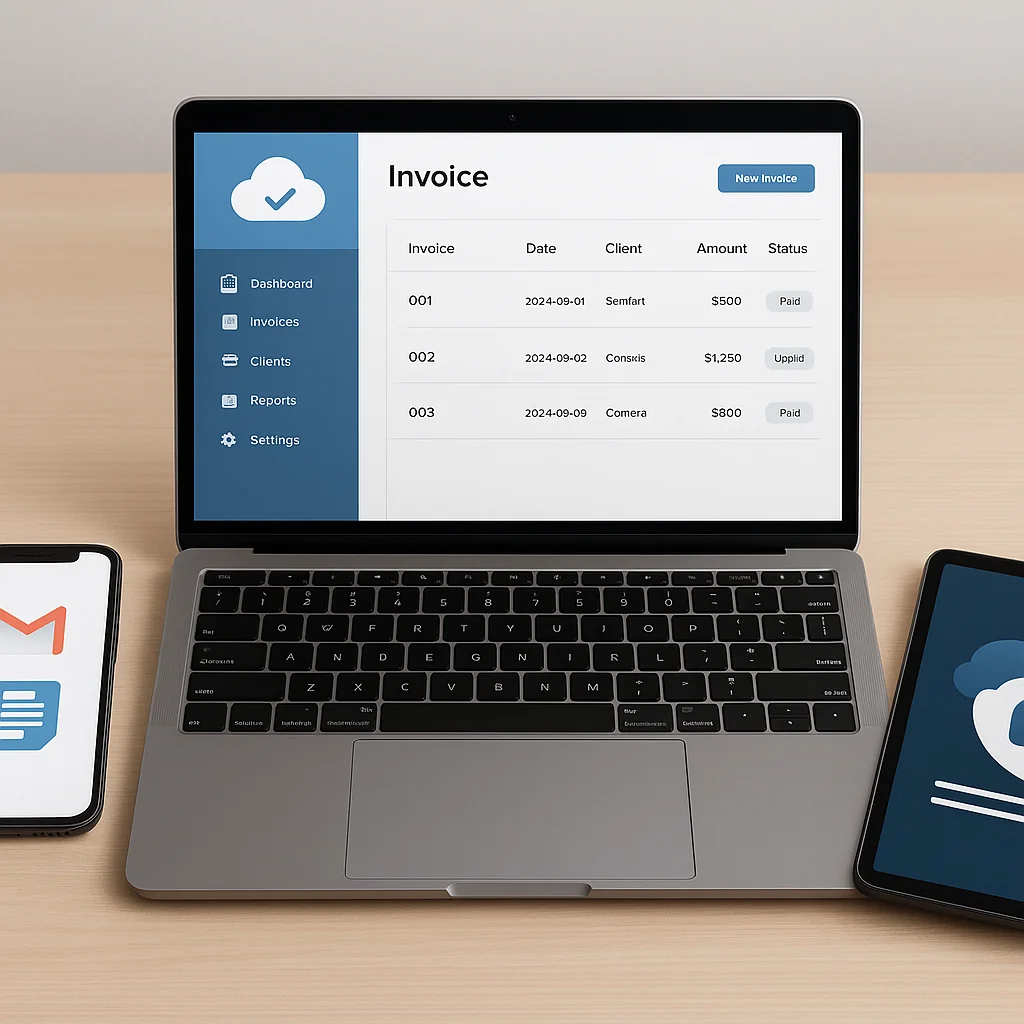
Before you choose, consider the requirements that affect day‑to‑day bookkeeping work:
Privacy and data residency
If you prefer that invoices and receipts never leave your Google account or pass through third‑party servers, prioritize tools that operate directly within your Drive and Gmail authorization. This minimizes external exposure and aligns with privacy‑first automation practices. For privacy‑conscious users, a solution that keeps files and metadata in Drive is usually the safest option.
Reliability and maintenance
Automations that rely on external servers or API connectors can fail when those services are down or change limits. Systems that work inside your Google account typically have fewer moving parts to monitor and maintain.
Flexibility vs simplicity
Do you need complex multi‑step workflows (e.g., extract data to a spreadsheet, notify Slack, push to accounting software)? If yes, cloud automation platforms give more options. If you only need to consistently save and name attachments, native add‑ons or Drive‑centric tools offer faster setup and simpler maintenance.
Organization rules and searchability
Good tools let you create a clear folder structure and consistent file naming. Think about the folder structure you need, how you want files named, and whether you want OCR or searchable PDFs. Clear file naming and a predictable folder structure reduce manual search time and simplify accountant handoffs.
Cost and automation limits
Cloud platforms can be costlier at scale due to task or execution limits. Native add‑ons and Drive‑focused tools often have straightforward pricing based on accounts or storage and may include a helpful free trial to test the workflow.
How cloud automation platforms generally work
Cloud automation platforms connect many services and let you create triggers and actions. For invoice handling you typically:
- Create a trigger like “new email in Gmail with invoice label or attachment”.
- Filter the message by sender, subject, or content.
- Save the attachment to a Google Drive folder and optionally rename it.
- Send a summary to a chat or update a spreadsheet for bookkeeping.
This approach is powerful for multi‑step workflows and for automating downstream tasks beyond saving files.
Pros
- Very flexible — integrates many apps.
- Can implement complex conditional logic.
- Good when you need to connect Gmail to other cloud tools.
Cons
- Often routes data through external servers, which may be a privacy concern.
- Setup and testing take more time.
- Costs can increase as automation volume grows.
How native Gmail add‑ons work
Native Gmail add‑ons run in the Gmail interface or operate using Gmail APIs with closer in‑Gmail context. They typically let you:
- Install a Gmail add‑on and apply rules based on labels, senders, or attachments.
- Save attachments directly to Drive from the message view.
- Take actions while viewing a message (e.g., file to a folder, attach metadata).
Pros
- Good UX inside Gmail — add‑ons show up where you read email.
- Fast, often easy to configure rules.
- Can automate save Gmail attachments tasks without a separate platform.
Cons
- Feature sets and privacy models vary by add‑on.
- May lack advanced multi‑step automation without connecting other services.
- Some add‑ons still use external processing for OCR or parsing.
Privacy‑first Drive solutions: a third option
Privacy‑first Drive solutions are built to automate saving invoices from Gmail into Google Drive while keeping everything under your Google account permissions. They focus on automating the collection and organization of invoices without routing files through external servers.
What makes them different
These tools are designed so that document content and attachments stay in your Google Drive and your Gmail account — not on third‑party servers. They often provide:
- One‑click invoice setup that creates a predictable folder structure (by supplier, month, year).
- Automatic file naming and consistent folder rules to improve bookkeeping.
- Optional OCR or text extraction that runs using Google Drive capabilities, not external processors.
Pros
- Strong data privacy and control — your files remain in Drive.
- Simple, fast setup and reliable day‑to‑day operation.
- Low maintenance compared with multi‑tool workflows.
Cons
- Less suited for complex cross‑app automations.
- May have feature trade‑offs versus full general automation platforms.
Practical examples: real workflows
Below are three real‑world examples showing how each approach can be used to automate invoice handling.
Example 1 — Flexible multi‑step workflow (cloud automation)
Your business receives invoices from multiple suppliers and you want to:
- Save attachments to Drive
- Rename files to “YYYY‑MM‑Supplier‑InvoiceNumber.pdf”
- Log entries to a bookkeeping spreadsheet
- Notify your accounting Slack channel
A cloud automation platform can implement all steps in one flow. It’s powerful, but note that attachments may pass through the platform’s servers during processing. You also need to manage task runs and possible API limits.
Example 2 — Quick in‑Gmail saves (native add‑on)
You’re a freelancer who wants to quickly save invoices to Drive: add a label like “invoices,” and the native Gmail add‑on moves attachments from labeled messages into a monthly folder. This is fast to set up and keeps saves inside your Gmail workflow.
Example 3 — Privacy‑first collection and organization (Drive solution)
You want bookkeeping receipts saved from Gmail to Drive, organized by supplier and date, without external servers. A privacy‑first Drive solution can watch your invoice inbox, automatically save attachments into a supplier/month/year folder, and apply consistent file naming. OCR and searchability are handled using Drive’s native capabilities, and the files remain in your account.
Setup walkthroughs — what to expect
Here are concise, realistic setup steps for each approach so you know the time and effort required.
Cloud automation platform — typical steps
- Create an account and connect Gmail and Google Drive.
- Build a new workflow: trigger on new Gmail message with attachment or label.
- Add filters for sender, subject, or attachment type.
- Add an action to upload the attachment to Drive and set a rename rule.
- Test the flow with sample emails, then enable it.
Expect to spend time testing edge cases, handling quota errors, and monitoring task logs.
Native Gmail add‑on — typical steps
- Install the add‑on in Gmail and grant permissions.
- Create a rule: when an email matches a label or sender, save attachments to a Drive folder.
- Optionally configure file naming or apply a label for manual review.
- Test with a few messages.
Setup is usually straightforward and quick.
Privacy‑first Drive solution — typical steps
- Install the tool with Google account authorization so it can access your Drive and Gmail labels.
- Create a mailbox rule or point the tool at an “invoice inbox” label like “invoices”.
- Choose folder structure and file naming convention (e.g., Supplier/2026/03).
- Enable automatic saves and test with sample invoices.
This often provides the fastest one‑click invoice setup and minimal ongoing maintenance.
Organization best practices whichever path you choose
To make your automated invoices useful, adopt clear standards:
- Pick a consistent folder structure and stick to it (e.g., Supplier → Year → Month).
- Use clear file naming: YYYY‑MM‑Supplier‑InvoiceNumber.pdf.
- Keep an “Inbox” or “Review” folder for exceptions and receipts that need manual validation.
- Enable Drive OCR or searchable PDFs so you can find invoices by text inside documents.
- Keep a small audit log or spreadsheet of automated saves for reconciliation when needed.
Good folder structure and file naming reduce search time and simplify accountant handoffs.
Common pitfalls and how to avoid them
1. Overly broad filters
If your email filter is too broad, you’ll save non‑invoice attachments. Use sender lists, subject patterns, or invoice markers in the email body to refine rules.
2. Ignoring privacy implications
Understand where attachments are processed. If privacy matters, prefer solutions that keep documents in Drive and avoid external servers.
3. Not testing edge cases
Test vendor emails with multiple attachments, embedded images, or different file types (PDF, JPG). Validate that file naming and folder rules hold for all samples.
4. Not planning for exceptions
Use a review folder for invoices that fail parsing or whose metadata is unclear. This keeps automated flows from creating disorganized records.
Which approach is right for you?
Choose based on your priorities:
- Pick a cloud automation platform if you need complex, cross‑app automations beyond Drive and Gmail.
- Pick a native Gmail add‑on if you want quick in‑Gmail convenience and moderate rules.
- Pick a privacy‑first Drive solution if you want fast one‑click invoice setup with the strongest data control and simple, reliable invoice filing automation.
Real user scenarios
Small business owner — prioritize speed and privacy
You bill clients and get supplier invoices in the same inbox. You want receipts saved to Drive by supplier and month and don’t want attachments going through external servers. A privacy‑first Drive solution gives one‑click invoice setup, consistent file naming, and keeps files in your account so your accountant can access them without exposing data elsewhere.
Accountant handling multiple clients — prioritize flexibility
You manage multiple client inboxes and need to route saved invoices to different systems. A cloud automation platform can route files to client folders, update spreadsheets, and trigger accounting entries. Just be mindful of privacy preferences from each client.
Freelancer — prioritize simplicity
You want to automatically save receipts for expenses to Drive and don’t want to fiddle daily. A native Gmail add‑on that saves attachments from labeled messages will do the job quickly.
Checklist before you automate
- Do you require that files never leave your Google account? If yes, favor Drive‑native solutions.
- Do you need multi‑step workflows? If yes, evaluate flexible automation platforms.
- What file naming convention will your accountant prefer?
- How will you handle invoices that fail parsing — a review folder or human check?
- Do you want searchable PDFs using Drive OCR?
Practical tips to improve automation accuracy
Small configuration changes can dramatically reduce errors.
- Use a dedicated invoice label in Gmail and have suppliers copy that pattern when emailing.
- Whitelist common supplier domains to reduce false positives.
- Enable Drive OCR to make invoices text‑searchable by content.
- Standardize invoice file formats by asking suppliers for PDFs when possible.
- Keep an exceptions folder for manual review to avoid polluting organized folders.
FAQ
Can I save invoices from Gmail automatically without exposing them to external servers?
Yes. Privacy‑first Drive solutions are designed so that attachments and metadata remain in your Google account instead of passing through third‑party servers. That approach is ideal for users who want secure invoice storage and tight data control.
Will automated saves make invoices searchable in Drive?
Yes, if Drive OCR or searchable PDF support is enabled. Many Drive‑centric tools leverage Google Drive’s native OCR accuracy to make text within scanned receipts searchable.
How should I name files for easy bookkeeping?
Use a consistent scheme like YYYY‑MM‑Supplier‑InvoiceNumber.pdf. Combine that with a clear folder structure (Supplier → Year → Month) to simplify searches and accountant handoffs.
What happens when an email has multiple attachments?
Most automation options let you save all attachments to a chosen folder and apply a naming pattern. If you routinely receive multiple files, test how your chosen tool handles them and whether it preserves original filenames or applies a new standard.
Is there a quick way to start if I’ve never automated invoice collection before?
Yes — start with a privacy‑first Drive solution or a simple Gmail add‑on that watches a single label. Set up one or two rules (save attachments from labeled messages into a monthly folder) and validate for a week before expanding rules.
Closing summary
In short, if you need broad integrations and complex workflows, cloud automation platforms are powerful. If you want convenience and in‑Gmail speed, native Gmail add‑ons are a solid choice. If your priority is privacy, simple one‑click invoice setup, and keeping files in your Google account, a privacy‑first Drive solution is often the best balance of reliability and control. Consider your priorities around data residency, flexibility, and maintenance effort and pick the approach that fits your bookkeeping rhythm.
Finally, whether you call it invoice automation or in Hebrew איסוף חשבוניות מהמייל, the right tool will consistently move attachments from Gmail into Drive, apply clear file naming, and keep your records organized for tax time and accounting.

 Continue with Google