Top 10 Gmail Automation Tools to Manage Invoices and Receipts
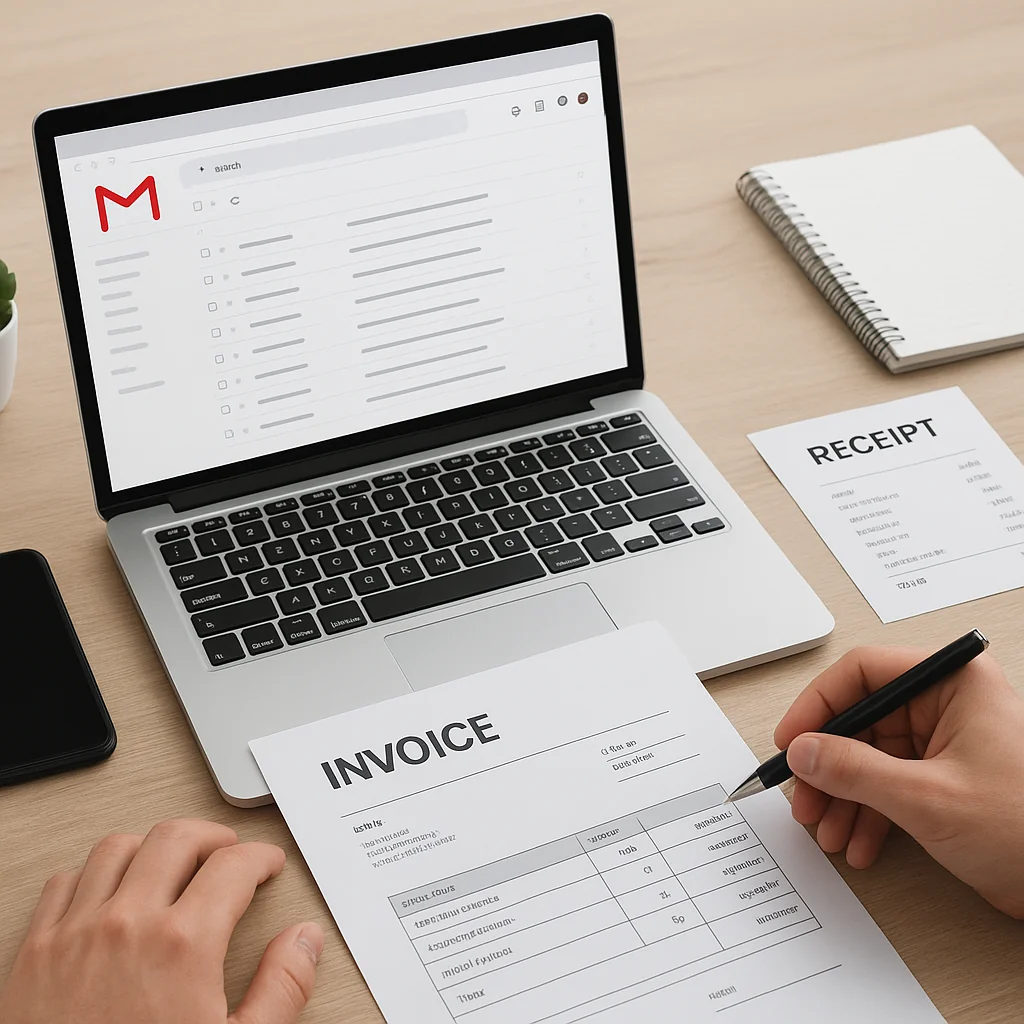
If you need to save invoices Gmail sends you, automatically file receipts, or move attachments into Google Drive without manual work, this guide shows the top 10 approaches and tools to automate that process. You’ll learn what each option does, who it’s best for, how it handles privacy, and practical setup tips so you can automate invoice collection quickly and securely.
Why automate invoices and receipts from Gmail?
Manually downloading attachments and renaming files wastes hours each month and increases bookkeeping errors. Automating how you save Gmail attachments and auto-save receipts into Google Drive reduces time spent on filing, improves consistency for accountants or bookkeepers, and makes tax season far less painful. If privacy is a concern, you can choose methods that keep data inside your Google account rather than sending financial documents through external servers.
How I chose the top 10 tools
This list covers practical solutions you can use today: built-in Gmail features, scripts you can run inside your Google account, safe on-device options, and single-purpose automations that connect Gmail to Drive. Each entry is evaluated on ease of setup, privacy posture, reliability for save attachments automatically tasks, and fit for common workflows like organize invoices Drive or invoice filing automation.
Top 10 Gmail automation tools and approaches
Below are ten approaches you can use to save Gmail attachments and auto-save receipts into Google Drive. Each entry explains what it does, who should pick it, privacy notes, and a short setup hint.
1. Gmail filters + labels (native Gmail)
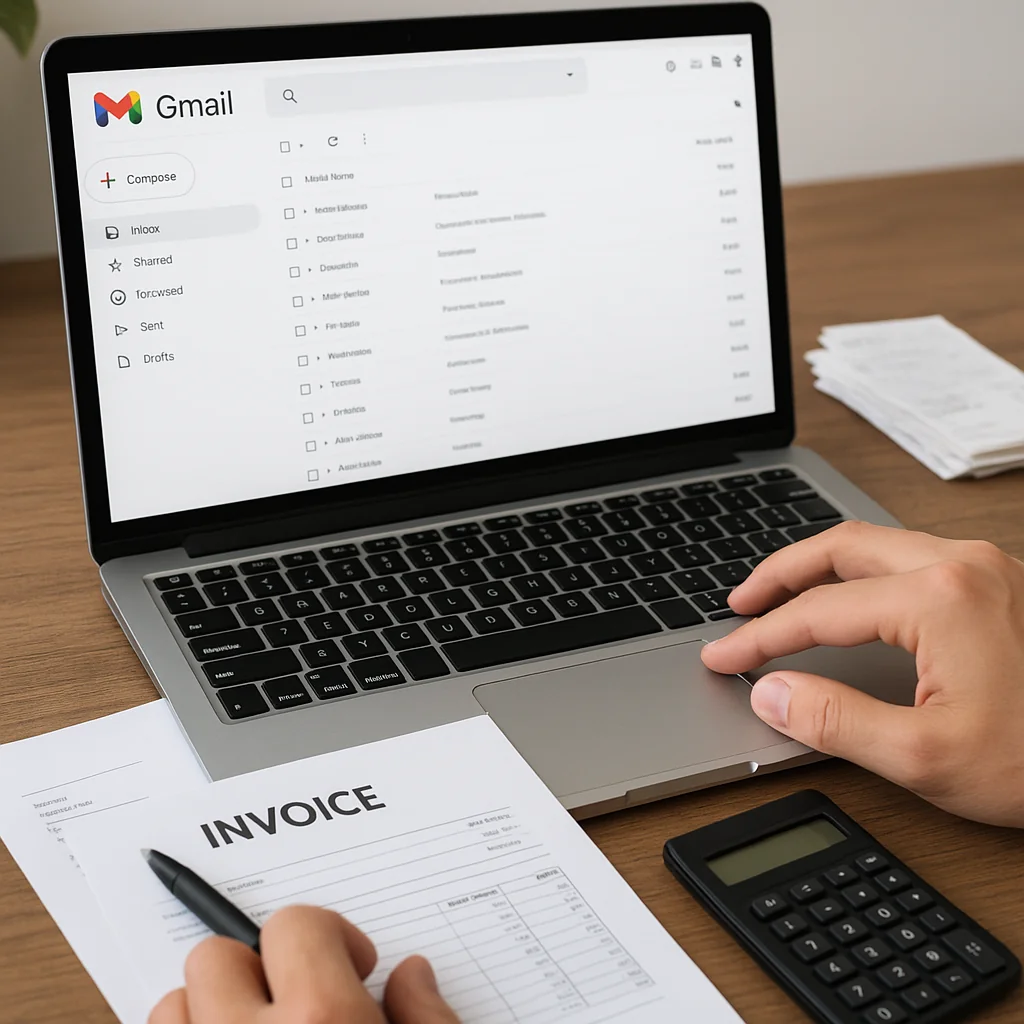
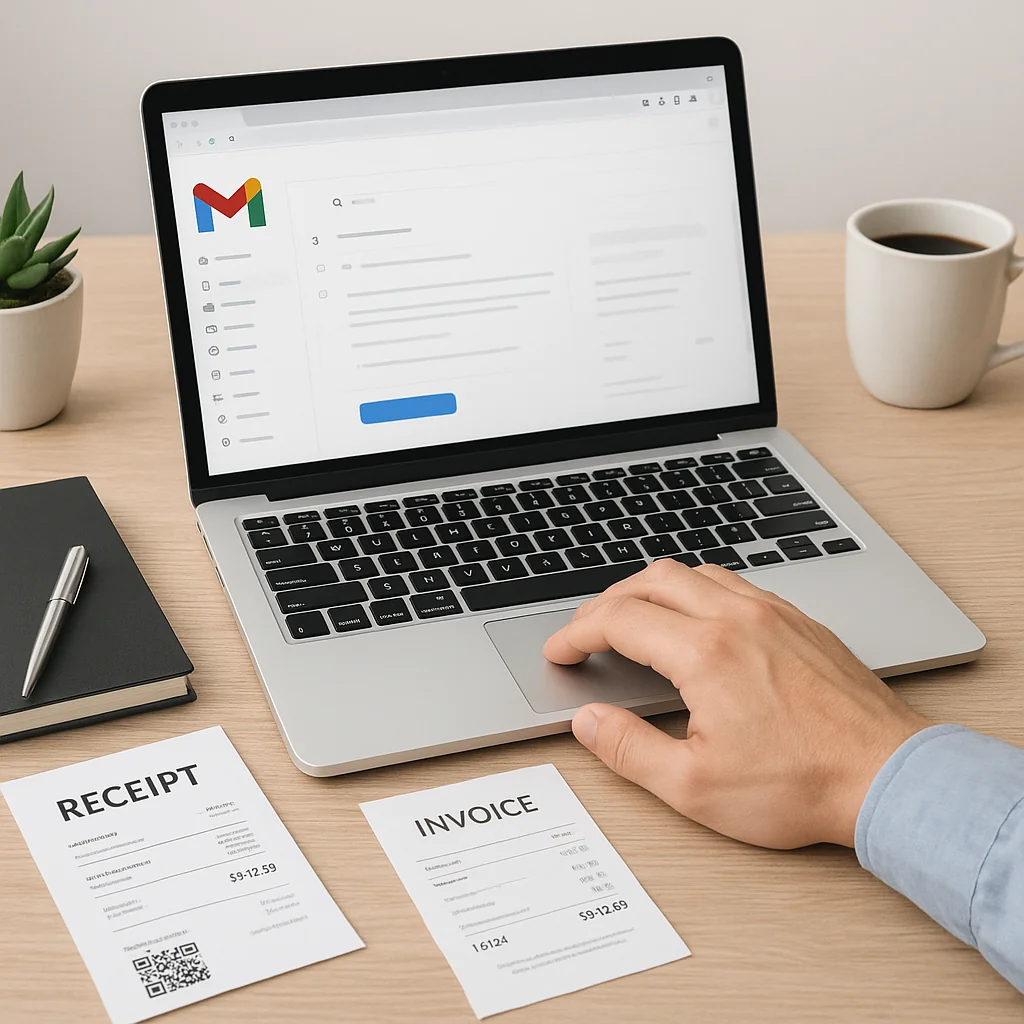
What it is: Use Gmail’s built-in filters to label messages from suppliers and mark invoices for later processing.
Best for: Freelancers and solopreneurs who want a low-tech start with invoice inbox automation.
Privacy: Fully inside your Google account.
Quick setup hint: Create filters that match sender addresses or subject lines (invoice, receipt) and apply labels like “Invoices/2026” so you can quickly find and download attachments when needed.
2. Google Drive manual folders (paired with filters)
What it is: A simple folder hierarchy in Google Drive (by year/month/supplier) combined with manual saves from Gmail.
Best for: Small teams that prefer full control and minimal automation.
Privacy: Files remain in your Drive and aren’t exposed to external servers.
Quick setup hint: Standardize a file naming convention so you can sort and search easily later.
3. Google Apps Script (custom automation inside Google)
What it is: A customizable script that runs inside your Google account to detect invoice emails and save attachments to Drive automatically.
Best for: Tech-savvy users and accountants who need tailored logic—such as extracting invoice numbers and placing files into supplier folders.
Privacy: Runs in your account; no external storage required if you avoid calling external APIs.
Quick setup hint: Use time-driven triggers or watch for specific labels. If you extract text from PDFs, combine with OCR tools inside Drive.
4. Email parsing services (hosted parsers)
What it is: Parsers read structured fields from body text or attachments (supplier, date, total) and forward data or files to Drive or a spreadsheet.
Best for: Businesses that want automated metadata extraction for bookkeeping.
Privacy: Hosted parsers often route data through external servers—evaluate data retention and encryption policies before use.
Quick setup hint: Focus parser rules on consistent invoices and add checks to avoid processing promotional emails.
5. Third-party automation platforms (connectors)
What it is: Low-code connectors that move Gmail attachments to Drive based on triggers and conditions.
Best for: Non-technical teams that want visual workflows for automating invoice filing automation across apps.
Privacy: These platforms typically route data externally. If privacy-first automation is essential, configure minimal data logging or run rules only within an approved environment.
Quick setup hint: Trigger on labeled messages to create a reliable pipeline from Gmail to Drive.
6. On-device or browser-based extensions
What it is: Extensions or add-ons that run in your browser and can save attachments directly to Drive or local folders.
Best for: Individuals who prefer no cloud routing beyond Google Drive.
Privacy: On-device tools can keep documents local or push only into your Drive; inspect permissions carefully.
Quick setup hint: Pick extensions that request only the minimum Gmail and Drive permissions needed to save files.
7. OCR tools integrated with Drive
What it is: Optical character recognition (OCR) applied to scanned receipts or PDF invoices saved in Drive to extract searchable text and key fields.
Best for: Teams that need a searchable archive and want to automate data entry for bookkeeping.
Privacy: If OCR runs within Drive or your Google account, data remains private; otherwise check hosted OCR provider policies.
Quick setup hint: Use OCR to populate spreadsheets with totals and dates; validate extracted values with a short review step.
8. Mobile receipt scanner apps that sync to Drive
What it is: Mobile apps that capture receipts, apply OCR, and save images or PDFs to a Drive folder.
Best for: Small business owners and freelancers who collect paper receipts on the go.
Privacy: Choose apps that can save directly to your Drive to avoid external servers.
Quick setup hint: Use a dedicated Drive folder per month and consistent file naming so receipts auto-organize.
9. Workflow rules inside Google Workspace (admin controls)
What it is: Admin-side routing or rules that can archive certain messages or attachments automatically.
Best for: Finance teams in organizations using Google Workspace who need centralized control.
Privacy: Rules operate inside your organization’s Google environment and do not require third-party routing.
Quick setup hint: Coordinate with IT to ensure rules match compliance and retention policies.
10. InvoDrive — privacy-focused Gmail-to-Drive automation
What it is: A tool built to automatically save Gmail attachments and receipts into organized Google Drive folders without moving your financial data outside your account.
Best for: Users who want one-click invoice setup, supplier/month/year folder organization, and privacy-first automation that keeps files in Drive.
Privacy: Designed to operate within your Google account so invoice and receipt files stay under your control. InvoDrive does not store or process financial data on external servers.
Quick setup hint: Connect your Gmail and choose folder rules by supplier and date. You can automate invoice collection for faster bookkeeping and retain a consistent folder hierarchy.
Comparison table — which option fits your needs?
The table below summarizes strengths and privacy posture to help you compare approaches at a glance.
| Tool / Approach | Best for | Privacy | Setup effort | Key benefit |
|---|---|---|---|---|
| Gmail filters + labels | Freelancers, solopreneurs | High (inside Google) | Low | Quick to implement, no extra tools |
| Drive manual folders | Teams preferring manual control | High | Low | Full ownership of files |
| Google Apps Script | Technical users, accountants | High (runs in account) | Medium | Custom logic and metadata extraction |
| Email parsing services | Businesses needing data extraction | Variable (hosted) | Medium | Automatic field extraction |
| Third-party automation platforms | Non-technical teams | Variable (hosted) | Low–Medium | Visual workflows across apps |
| Browser extensions | Individuals with browser workflows | Medium–High | Low | Save directly from Gmail UI |
| OCR in Drive | Teams needing searchable receipts | High (if run in Drive) | Medium | Searchable text and data extraction |
| Mobile scanner apps | On-the-go receipt capture | Depends on sync method | Low | Fast capture with OCR |
| Workspace admin rules | Organization-level workflows | High (inside org) | Medium | Centralized control and compliance |
| InvoDrive | Privacy-conscious users and teams | High (stays in Google) | Low (one-click invoice setup) | Automatic, rules-based invoice filing |
Use the table to quickly decide which approach matches your privacy needs, technical comfort, and the time you can invest in setup.
How to choose the right option for your team
Ask these decision questions:
- Do you need complete control over all files and metadata? If yes, prefer solutions that run inside your Google account (Gmail filters, Drive folders, Google Apps Script, Workspace rules, or privacy-first tools).
- How much setup time can you spare? Low setup favors filters, extensions, or an out-of-the-box tool with one-click invoice setup.
- Do you need automatic extraction of invoice fields for accounting? Consider OCR or parsing approaches and validate extracted values.
- Is compliance and centralized retention important? Coordinate with Workspace admin controls or choose a solution that supports a consistent folder hierarchy and data retention policy.
Step-by-step examples (real-world)
Here are practical examples showing how different users can automate invoice and receipt handling.
Example A — Freelancer who wants simple automation
Goal: Save invoices to Drive automatically and group by month.
- Create a Gmail filter that matches sender addresses or subject words like “invoice” and apply a label “Invoices/Auto”.
- Use a browser extension or a light script to detect messages with that label and save attachments into a Drive folder called “Invoices/YYYY/MM”.
- Use a file naming convention like YYYY-MM-DD_supplier_invoice.pdf for easy search.
Result: New invoices appear in the correct Drive month folder without manual downloads.
Example B — Bookkeeper for multiple clients
Goal: Automatically collect client invoices from Gmail into client-specific folders and extract the invoice number for accounting.
- Create a distinct supplier mapping or set rules that identify which emails belong to which client.
- Use a Google Apps Script or a privacy-focused tool to save attachments into client folders and rename files using supplier + invoice number + date.
- Run OCR on PDFs saved to Drive to extract totals and dates into a shared spreadsheet for reconciliation.
Result: A searchable, consistent archive per client and a preliminary dataset for bookkeeping review.
Example C — Privacy-conscious small business
Goal: Automate invoice collection while ensuring no invoice data leaves the company’s Google environment.
- Set up Gmail filters and labels for invoices and receipts.
- Use Google Apps Script or a privacy-first tool that operates within your Google account to move attachments into Drive folders organized by year and supplier.
- Enforce a data retention policy via Workspace admin tools if needed.
Result: All invoices and receipts remain under company control without external routing.
Practical setup tips to avoid common pitfalls
Keep these best practices in mind when you automate save Gmail attachments workflows:
- Test rules on a small set of messages before enabling them globally.
- Use clear folder hierarchy and file naming convention so files are predictable for accountants.
- Monitor for false positives—promotional emails sometimes include attachments that mimic invoices.
- Retain originals in Drive and optionally keep a processed copy in an archive folder for compliance.
- Document your archive structure and search tips so teammates can find files without guessing.
Privacy and security checklist
When you automate invoice handling, these items matter most:
- Confirm whether any tool processes attachments on external servers. For privacy-first automation, prefer solutions that operate inside your Google account.
- Limit permissions: only grant the minimum Gmail and Drive scopes needed to save attachments.
- Use a consistent folder hierarchy and set Drive sharing to the smallest group necessary.
- Define a data retention policy and apply it via Drive or Workspace admin controls.
When to use a hosted parser or third-party platform
Hosted parsers and automation platforms excel when you need structured data from invoices—like line items, totals, or tax IDs—pushed into accounting software or spreadsheets. They reduce manual data entry but often route data through an external service. If you need this capability, weigh the convenience against privacy requirements and choose providers that publish strong encryption and retention policies.
How to validate accuracy
Automation speeds things up but don’t skip checks. Set a weekly review to confirm:
- Attachments were saved to the correct Drive folder.
- File names follow your convention for easy reconciliations.
- Extracted values (date, total, invoice number) match the attached PDF.
Automate a short verification workflow where someone in finance reviews a sample of processed invoices to catch patterns of errors early.
Costs and time investment
Costs vary by approach. Native Gmail filters and Drive folders cost nothing beyond your time. Google Apps Script requires developer time but no recurring payments. Hosted parsers and third-party platforms typically charge monthly fees but reduce manual labor. Match cost to the time saved: if you’re spending multiple hours weekly on filing, automation often pays back in weeks or months.
Final checklist before you implement
- Decide privacy posture: fully inside Google or willing to use hosted services.
- Pick a folder hierarchy that works for tax years and suppliers.
- Choose a consistent file naming convention.
- Test automation on a sample inbox for 2–4 weeks.
- Document the workflow and who is responsible for exceptions.
FAQ
Will automated tools rename files when saving invoices to Drive?
Many tools and scripts can rename files using patterns like date_supplier_invoice.pdf. If you need standardized names, choose a solution with file naming rules or use a Google Apps Script to enforce your file naming convention.
Can I automate receipts without sending data to external servers?
Yes. Options such as Gmail filters, Google Apps Script, Workspace admin rules, and privacy-focused apps can operate entirely within your Google account so attachments never leave your Drive environment.
How do I make sure extracted data (like totals) is accurate?
Use OCR and parsing with a short verification step. Automate extraction into a draft spreadsheet, then have an accountant or bookkeeper validate a sample until accuracy is consistently high.
What if an invoice arrives as a link rather than an attachment?
Automation must handle links differently. You can use parsers or scripts that detect link patterns and fetch the linked file if permitted, but ensure you validate source security before fetching external documents.
Is there a recommended folder structure for invoices and receipts?
A simple, effective structure is /Invoices/YYYY/MM/Supplier or /Receipts/YYYY/MM. This keeps files organized for month-by-month bookkeeping and simplifies searches by date.
Integrating automated saving of invoices and receipts into your Gmail and Drive workflow saves time and reduces errors. Whether you prefer a DIY approach with Gmail filters and Apps Script, or a one-click invoice setup via a privacy-first application, choose the option that matches your technical comfort and privacy requirements. For Hebrew-speaking users, this kind of automated solution supports איסוף חשבוניות מהמייל alongside general invoice automation needs.
Terminology mentioned in this article: email parsing, optical character recognition, file naming convention, folder hierarchy, data retention policy.

 Continue with Google