Quick answer
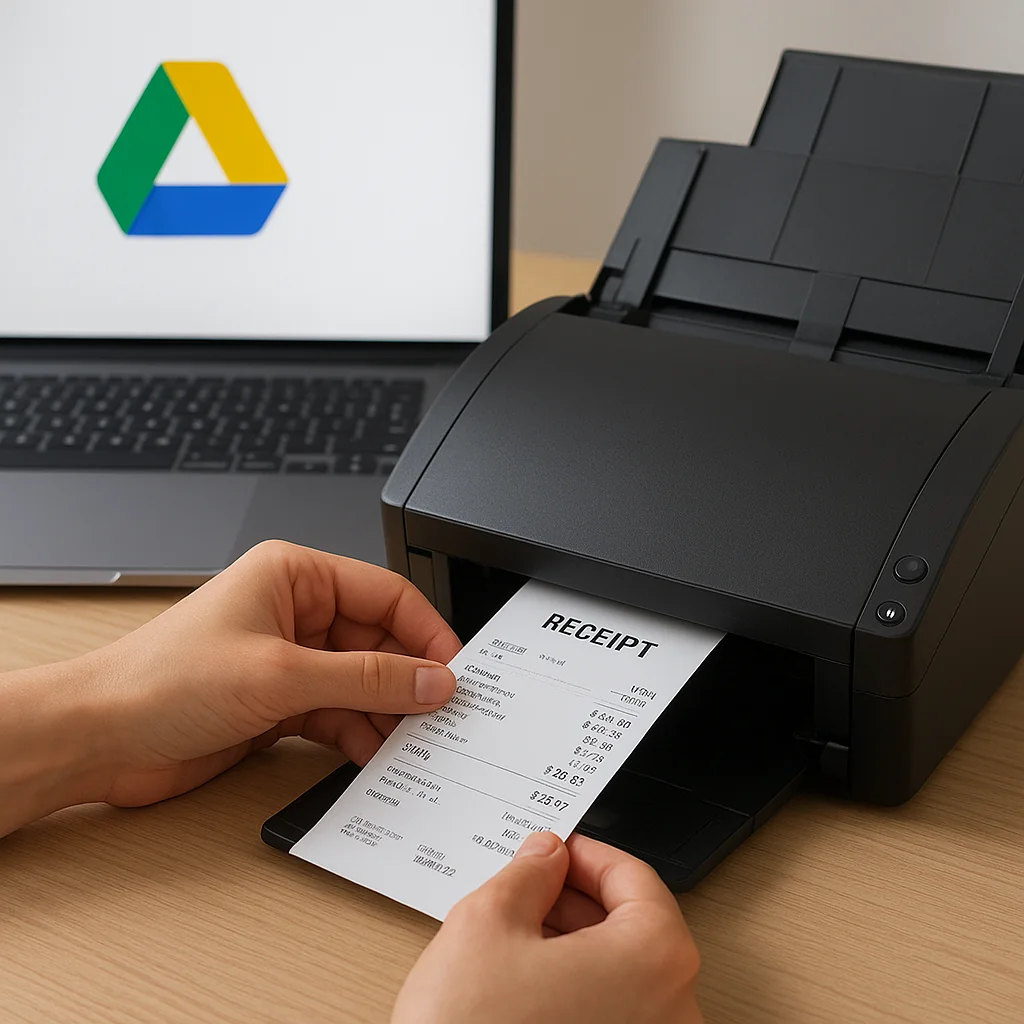
This guide shows how to set up a receipt scanner workflow that automatically saves and organizes receipts and invoices from Gmail into Google Drive. You’ll get a privacy-first, searchable archive that works with one-click automation tools or a simple Apps Script, and examples you can copy for your business.
Why automate saving receipts to Google Drive?
Manually downloading email attachments and filing them eats time and creates errors. Automating the flow from Gmail to Drive turns a pile of messages into an organized archive you can search, share with your bookkeeper, or feed into bookkeeping tools. The main benefits are consistent organization by supplier/month/year, fewer missed expenses, and a reliable backup inside your own Google account.
What you need before you start
Gather these basics so setup is quick:
- A Gmail account and Google Drive with enough storage for attachments.
- Decisions about folder structure and file naming (see examples below).
- Either a privacy-first automation tool that runs inside your Google account (one-click setup) or a small Google Apps Script if you prefer DIY.
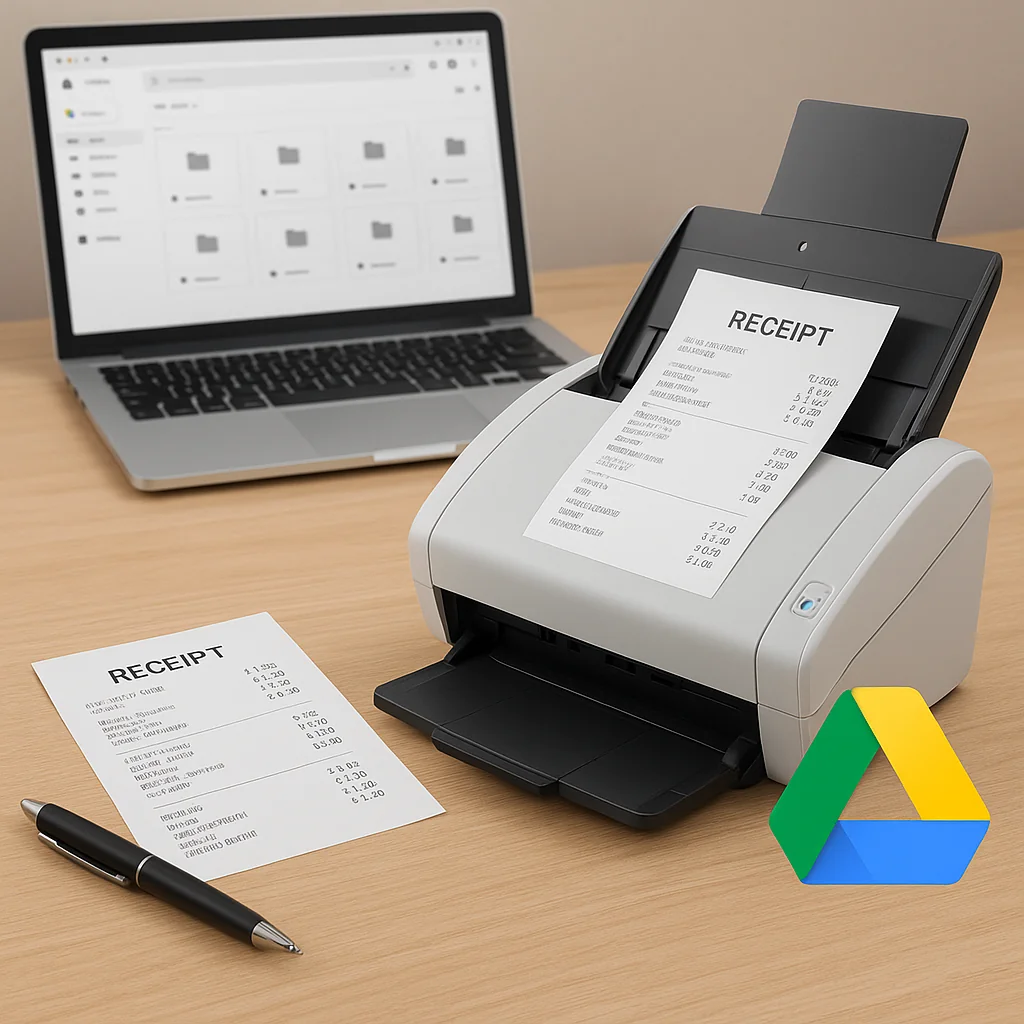
- A mobile scanner app (optional) for paper receipts, or the ability to email scans to yourself.
InvoDrive supports one-click configuration that runs within your Google account so attachments do not leave your Drive. If you prefer to build your own flow, a short Apps Script can match the same behavior while keeping all data inside your account.
At-a-glance setup steps
Use the table below as a concise roadmap; detailed steps follow after the table.
| Step | Action | Result |
|---|---|---|
| 1 | Choose a folder structure and naming rules | Consistent organization for search and accounting |
| 2 | Create Gmail filters and labels for receipts | Incoming invoices are identified and labeled automatically |
| 3 | Install and authorize automation (one-click or Apps Script) | Attachments are saved to the right Drive folders |
| 4 | Configure folder mapping and file naming | Files land in supplier/month/year folders with consistent names |
| 5 | Enable mobile scanning and OCR if needed | Paper receipts are searchable and tied to the same archive |
| 6 | Set review rules and retention | Maintain a clean archive and comply with policies |
The table above gives a quick checklist; follow the steps below for practical details and examples tailored to small businesses, freelancers, and finance teams.
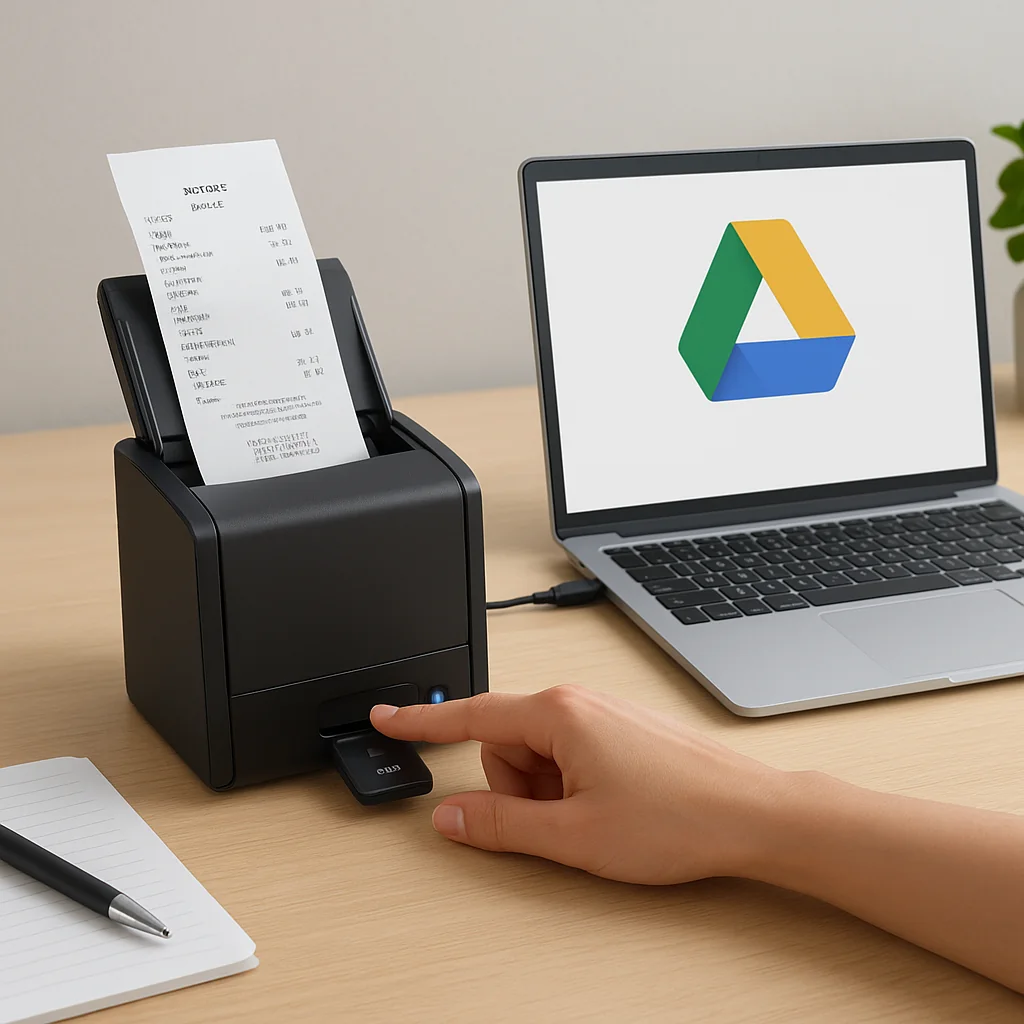
Step 1 — Choose a folder hierarchy and naming rules
Decide now how you want files organized. Common, practical choices:
- By year → month → supplier (example: Receipts/2026/2026-04-Amazon).
- By supplier → year → month (if you reconcile by vendor more often).
- By account/type → year → month (for multi-entity bookkeeping).
Keep file names consistent. A straightforward file naming convention helps later automation and searching. For example:
- 2026-04-15_AMZN_Receipt_45.99.pdf
- 2026-04-10_SUPPLIERNAME_Invoice_#1234.pdf
Decide whether to include amounts, invoice numbers, or payment status in the file name. Less is often better — include the date, vendor, and a short descriptor.
Decide now on retention length and whether you’ll keep originals after processing or move them to an archive folder.
Step 2 — Create Gmail filters that capture receipts and invoices
Filters are the core of email attachment automation. A good filter accurately catches receipts without over-including newsletters or promotions.
Examples of effective filter criteria:
- From specific vendor domains: from:(@amazon.com OR @stripe.com)
- Subject keywords: subject:(invoice OR receipt OR “payment received” OR “your invoice”)
- Attachments only: has:attachment
- Combine terms: has:attachment AND (subject:invoice OR subject:receipt) AND -label:notifications
After creating a filter, apply a label such as “Receipts/ToSave” so automation knows which messages to process. Use nested labels for later routing: Receipts → ToSave, Receipts → Reviewed.
Filter examples you can copy
Freelancer who invoices via PayPal and Stripe:
- Query: has:attachment (from:(@paypal.com OR @stripe.com) OR subject:(invoice OR receipt))
Retail owner collecting supplier invoices and POS reports:
- Query: has:attachment (from:(@vendor1.com OR @vendor2.com) OR subject:(invoice OR “statement”))
Step 3 — Choose your automation method: InvoDrive or do-it-yourself
You have two main privacy-respecting options:
- Use InvoDrive’s one-click setup that runs inside your Google account. It wires Gmail to Drive, maps labels to folders, and saves attachments without routing data through external servers.
- Build a small Google Apps Script that watches labeled messages and saves attachments to Drive. This approach keeps everything inside your account but takes a bit of scripting comfort.
Both approaches can be configured to only act on labeled messages, respect your folder hierarchy, and apply file naming rules. InvoDrive simplifies setup to minutes; a script offers full control and customization.
How the automation typically works
Automation watches for messages with a specific label (for example, Receipts/ToSave). When the label is present, it:
- Extracts attachments and optionally converts images to PDF
- Applies file naming rules and moves files into the correct Drive folder
- Optionally runs OCR or stores metadata for search
- Updates the email label (for example, Receipts/Reviewed)
Step 4 — Configure folder mapping and file naming rules
Map labels to folders using supplier patterns or sender domains. Typical mappings:
- From:@vendor.com → Drive/Receipts/2026/Vendor
- Subject contains “Invoice” → Drive/Invoices/2026
- Generic receipts → Drive/Receipts/2026/Misc
If the file naming rule includes invoice number or amount, set a stable pattern. Example rules:
- Date + Vendor + InvoiceNumber: YYYY-MM-DD_VENDOR_INV-1234.pdf
- Date + Vendor + Amount: YYYY-MM-DD_VENDOR_$AMOUNT.pdf
Automation tools can insert the email date automatically. If you use Apps Script, parse the attachment metadata or subject to pull invoice numbers. InvoDrive includes configurable naming templates that run inside your account so you don’t have to edit code.
Step 5 — Add mobile scanning and OCR for paper receipts
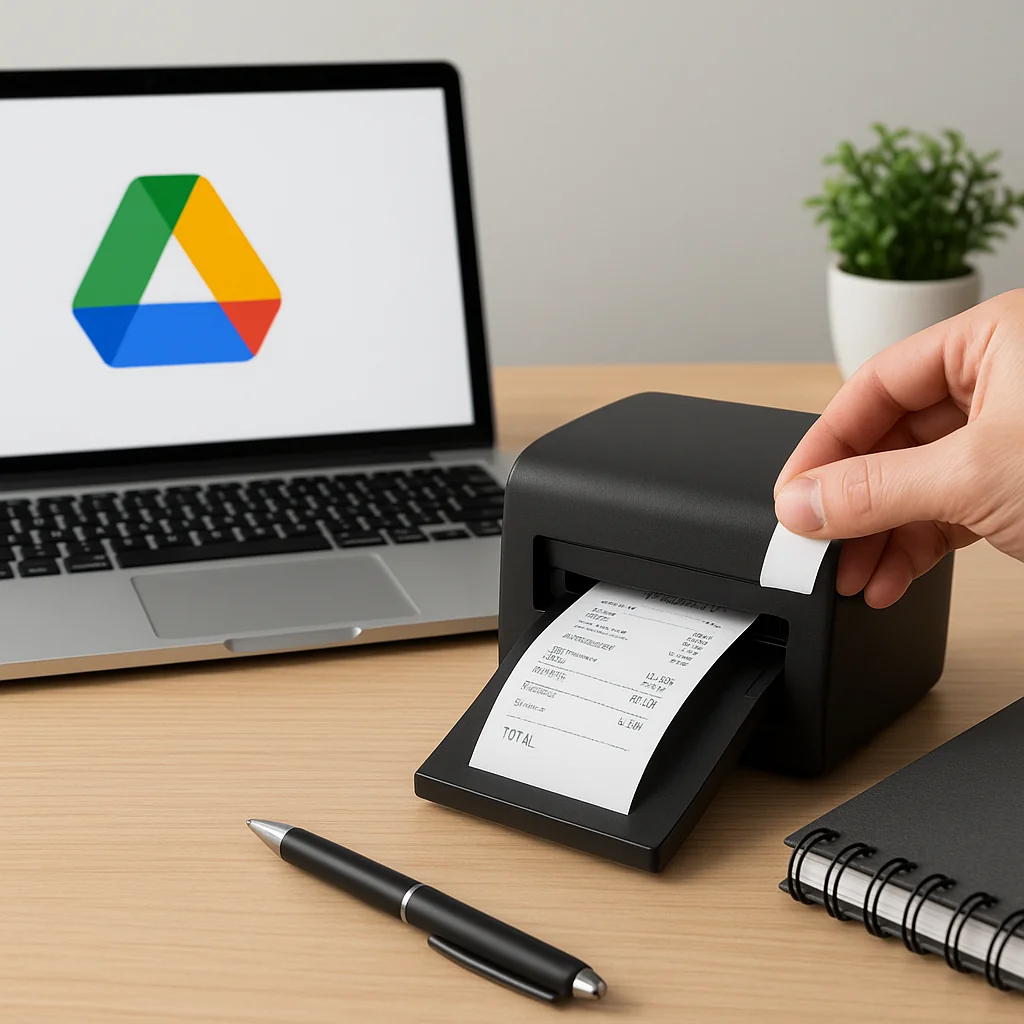
If you still have paper receipts, scan them using your phone and email them to your receipt inbox or upload directly to the appropriate Drive folder. Enable OCR if you want full-text search of scanned images.
A simple workflow:
- Scan receipt with a phone scanner app and save as PDF.
- Email that PDF to your receipt email (or upload to a “MobileScans” folder in Drive).
- Automation picks up the file, renames, and moves it to the supplier/month folder and runs OCR if enabled.
Common OCR tools integrated with Drive can create searchable PDFs. If you want field-level metadata extraction (date, total, vendor), look for an automation option that exposes metadata extraction. These options let you add the parsed data to the file name or to a metadata sheet for bookkeeping.
Decide whether OCR will run on everything or only on files in a “scans” folder to save processing time.
Step 6 — Review, reconcile, and retention
Automation should reduce, not remove, control. Set up review rules:
- Use a “Receipts/Reviewed” label for items already checked by you or your bookkeeper.
- Automate a weekly digest of unreviewed receipts (a saved search or label summary).
- Set a retention policy that archives files older than your tax compliance needs (e.g., 7 years for many US businesses) to an “Archive” folder.
Periodically run reconciliations against your accounting system to ensure everything imported correctly. If you have duplicates, configure the automation to skip or version files to avoid accidental overwrites.
Troubleshooting common issues
Attachments are not being saved
Check these items first:
- Filter match: open an example message and verify it matches the filter criteria and label.
- Label applied: confirm the labeled messages appear under the label in Gmail.
- Permissions: automation must have Drive and Gmail access within your account (OAuth scopes). Reauthorize if needed.
Wrong folder or name
Confirm your mapping rules and naming template. If you use domain-based mapping, ensure the sender domain exactly matches the mapping (some vendors send from third-party services). Use subject keywords as a fallback.
Duplicate files
Decide how duplicates should be handled: skip, overwrite, or add a counter. Set that behavior in your automation tool. If you use a script, implement a check for existing file IDs or matching file names before saving.
Practical examples — real-world setups you can copy
Three short examples show how small teams apply these patterns.
Example 1 — Freelance designer
Goal: Keep client receipts and software subscriptions organized by month.
- Filter: has:attachment (from:(@adobe.com OR @stripe.com) OR subject:(receipt OR invoice))
- Label: Receipts/Freelance/ToSave
- Folder structure: Drive/Expenses/Freelance/YYYY/MM
- File name template: YYYY-MM-DD_VENDOR_SUBJECT.pdf
- Result: Quick expense lookup by month for quarterly taxes
Example 2 — Retail shop
Goal: Separate supplier invoices from customer receipts; feed supplier invoices to the bookkeeper.
- Filter 1 (Suppliers): from:(@vendor1.com OR @vendor2.com) AND has:attachment
- Label 1: Receipts/Suppliers/ToSave
- Filter 2 (Customer receipts): subject:(“receipt” OR “payment”) AND has:attachment
- Label 2: Receipts/Customers/ToSave
- Folder mapping: Suppliers → Drive/Invoices/Year/Supplier, Customers → Drive/Receipts/Year/Month
- Workflow: Supplier invoices go to bookkeeper folder and flagged for review; customer receipts are archived monthly
Example 3 — Bookkeeping team for multiple clients
Goal: Centralized system to collect client invoices from multiple company mailboxes.
- Approach: Each client mailbox has the same automation rules and maps to a client-specific Drive folder.
- Labeling standard: Clients/ClientName/ToSave
- Naming template includes client code: CLIENTCODE_YYYY-MM-DD_VENDOR_INV.pdf
- Result: Unified archive where bookkeepers can run client-level reconciliations
Security and privacy considerations
Keep these points in mind to preserve data privacy and control:
- Authorize automation only with the Google account that owns the data.
- Prefer automation that runs inside your Google environment — this keeps data in your Drive and uses OAuth permissions you control.
- Limit scopes to Gmail read and Drive file creation where possible; revoke access when you no longer need it.
InvoDrive is designed to operate within your Google account so attachments stay in your Drive and are not routed through external processing servers. The same privacy-first principle applies if you build your own Apps Script-based flow.
Best practices checklist
- Start with a small set of filters and expand gradually so you can verify results.
- Keep naming rules simple and consistent; avoid excessive metadata in file names.
- Use labels to separate “ToSave” from “Reviewed” and keep an occasional manual audit.
- Enable OCR for scanned receipts you expect to search by text later.
- Document your folder hierarchy and naming conventions in one place for your team.
Short FAQ
How do I handle receipts without attachments (e.g., links or images embedded in the message)?
Use filters that look for common keywords in the body or subject. For images embedded in the message, an Apps Script can save inline images or convert the email to a PDF and store it in Drive.
Can I keep everything private and avoid external servers?
Yes. Both a properly scoped Apps Script and privacy-first tools that run inside your Google account will keep data within your Google Drive and Gmail environment, preventing external routing of sensitive financial data.
Will this help with automated bookkeeping?
Yes. A consistent archive makes it easier to extract invoices and receipts for your accounting system. Some automations can export a CSV of metadata (date, vendor, amount) to speed reconciliation.
What if my vendor sends invoices from many different domains or a third-party service?
Use subject keywords (invoice, receipt, statement) and attachment checks as fallbacks. For frequent third-party senders, map the third-party domain to the vendor within your folder mapping rules.
Closing summary — get started in minutes
Setting up a receipt scanner workflow with Gmail and Google Drive is a high-impact, low-effort improvement for small businesses and finance teams. Decide on a folder structure and naming rules, create precise Gmail filters, and choose an automation method that keeps data inside your Google account. Whether you use a one-click privacy-first tool or a short Apps Script, you’ll reduce manual work and improve bookkeeping accuracy.
Practical tip: start with a single label (Receipts/ToSave) and configure automation to act only on that label. This gives you a safe, testable way to validate behavior before wider rollout.
Decide now how you want files organized and apply these steps — you’ll reclaim hours each month and keep a tidy, searchable invoice archive inside Drive.
Decide on a file naming convention, enable OCR, plan for metadata extraction, organize a folder hierarchy, set a retention policy.

 Continue with Google