Quick answer
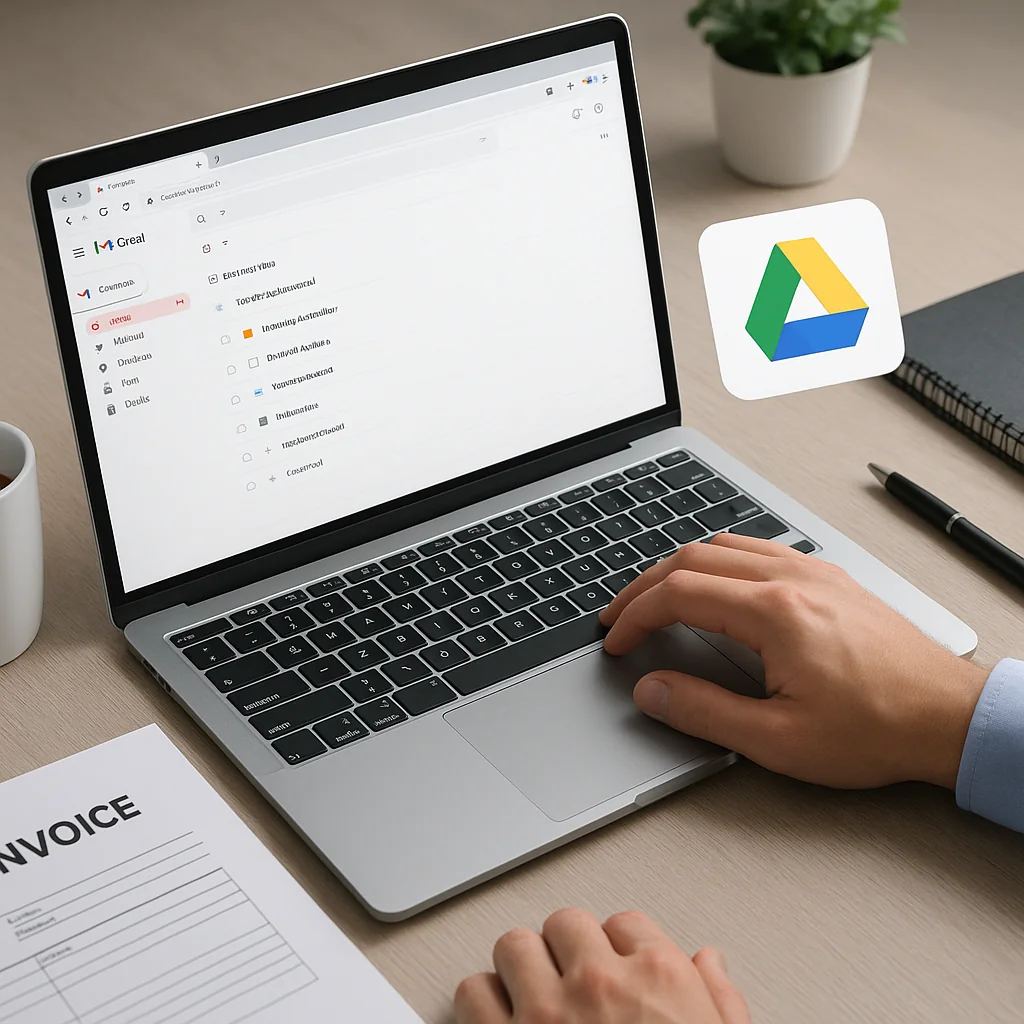
You can auto-save invoice attachments from Gmail to Google Drive using three practical no-code workflows: built-in Gmail filters with a simple Google Apps Script, a privacy-first one-click app that runs inside your Google account, or a Google Workspace add-on. Each option automates saving attachments, organizes them by supplier and date, and keeps data inside your Google account so your receipts remain private.
Why automate saving invoice attachments?
If you’re a small business owner, freelancer, or finance professional, saving Gmail attachments manually wastes time and introduces filing errors. Automating this process speeds bookkeeping, ensures consistent folder structure, and makes tax prep easier. You also reduce risk: fewer manual downloads means fewer misplaced receipts and more reliable audit trails.
What to look for in a no‑code solution
When choosing a workflow to save Gmail attachments automatically, prioritize:
- Privacy — data stays in your Google account; nothing passes through external servers.
- Simplicity — one-click or minimal setup so you don’t need coding skills.
- Organization — automatic folder rules by supplier, month, or year.
- Reliability — consistent handling of common invoice formats (PDF, JPG, PNG).
- Searchability — support for OCR and metadata to find receipts later.
Top no‑code workflows (overview)
Below are three effective, privacy-focused workflows that let you save invoices from Gmail to Drive without writing code: Built-in Gmail filters + Google Apps Script, a one-click privacy-first app (runs in your Google account), and the Google Workspace Add-on approach. Each fits different skill levels and privacy priorities.
Use this quick comparison to decide which path suits you.
The table below summarizes trade-offs across the three approaches. Read the short explanation that follows for setup highlights and privacy notes.

| Workflow | Setup difficulty | Privacy | Organization | Best for |
|---|---|---|---|---|
| Gmail filters + Apps Script | Medium (copy-paste script) | High (runs in your Google account) | Flexible (custom folder rules) | Users comfortable with small scripts |
| One-click privacy-first app | Very easy (one-click setup) | High (no external servers; uses your Google Drive) | Automated supplier/month/year folders | Non-technical users who want fast setup |
| Google Workspace Add-on | Easy (install & authorize) | High (integrates with your Google account) | Good (configurable rules) | Teams on Google Workspace |
Each option keeps data within your Google environment; choose the one that balances convenience and control for you.
Workflow 1 — Gmail filters + Google Apps Script (no external servers)
What it does: You create a Gmail filter that labels incoming invoices, then a small Apps Script watches for that label and saves attachments to Drive. This keeps everything inside your Google account and can be fully customized.
When to use this
Choose this if you like control and don’t mind a one-time script setup. It’s ideal for privacy-conscious users who want a free, serverless solution under their control.
Step-by-step
- Create a Gmail filter: search by sender, subject (“invoice”, “receipt”), or attachment presence and apply a label like “Invoices”.
- Open Google Apps Script (from script.google.com or Drive → New → More → Apps Script) and paste a ready-made script that: finds messages with the “Invoices” label, saves attachments to a Drive folder, and optionally moves messages or updates labels.
- Authorize the script to access Gmail and Drive — the code runs with your permissions only.
- Set a time-driven trigger (e.g., every 5–15 minutes) so the script runs automatically.
- Test with a few sample emails and adjust file naming and folder logic.
Privacy and reliability
The script runs inside your Google account and stores invoices directly in your Drive. There are no external servers. You control triggers, folder structure, and retention. Consider adding retry/error logging in the script so you can spot missed saves.
Pros and cons
- Pros: Free, private, highly customizable.
- Cons: Minor setup effort; requires maintenance if Gmail rules change.
Workflow 2 — One‑click privacy‑first app that runs in your Google account
What it does: A one-click setup connects to your Gmail and Drive using standard Google permissions and automatically saves invoice attachments into organized Drive folders by supplier, month, and year. It prioritizes privacy by operating within your account without relaying financial data to external servers.
When to use this
Choose this if you value a quick, friendly setup and want automatic, consistent organization with minimal fuss. It’s suited to freelancers and small teams who want a reliable inbox-to-drive flow without scripting.
How setup works (typical)
- Sign in with your Google account and authorize access to Gmail and Drive. The app uses OAuth to operate within your account — nothing is stored outside your Drive.
- Set simple rules: which senders or subject keywords to watch, preferred folder structure (example: /Invoices/{supplier}/{year}/{month}).
- Enable OCR or metadata extraction if you want searchable text inside saved PDFs (optional).
- Activate the workflow; attachments start moving to Drive automatically and are named based on your chosen convention.
Privacy and reliability
Because actions execute inside your Google account, invoice files and extracted data remain under your control. This setup minimizes technical overhead and reduces risk of external data exposure.
Pros and cons
- Pros: One-click invoice setup, minimal configuration, strong privacy posture.
- Cons: Less code-level customization than Apps Script for power users.
Workflow 3 — Google Workspace Add-on approach
What it does: A Workspace add-on integrates with Gmail and Drive in the Google Workspace environment and provides UI for saving attachments and configuring rules without code.
When to use this
Good for teams using Google Workspace who want centralized management and single-sign-on convenience while keeping data inside the organization’s Google Drive.
Setup highlights
- Install the add-on from your Workspace Admin console or the G Suite Marketplace if available.
- Authorize the add-on to access Gmail and Drive for users or the entire domain.
- Set organization-wide or individual rules for which messages to save and folder structure.
- Use administrative controls to enforce retention and access policies.
Privacy and IT controls
Workspace add-ons operate under Google’s permission model and can enforce domain policies. Files remain in users’ Drive or a shared Drive, depending on configuration, ensuring corporate control while avoiding external servers.
Pros and cons
- Pros: Centralized management, easy deployment for teams, integrates with Drive-based access controls.
- Cons: Requires Workspace admin involvement for organization-wide deployment.
How to organize invoices in Drive (best practices)
A consistent folder and file naming scheme matters more than the workflow you pick. Use a predictable structure so search and bookkeeping tools can find files quickly.
- Folder structure example: /Invoices/{year}/{month}/{supplier}
- File naming convention example: YYYY-MM-DD_supplier_invoiceNumber_amount.pdf
- Use Drive folders or Shared Drives depending on whether invoices are personal (Drive) or company-wide (Shared Drive).
- Enable OCR for PDFs and images to make content searchable; use metadata extraction to populate Drive file descriptions or tags if available.
These practices help when you need to retrieve receipts for expenses, reconciliations, or audits.
Practical examples
Here are real-world scenarios that show how these workflows help:
Freelancer — weekly batch processing
You receive invoices from clients and vendors. Using a one-click app you configure a rule: any message with “Invoice” in subject or from known suppliers is saved to /Invoices/Contractors/{year}/{month}. The app performs OCR and names files YYYY-MM-DD_client_invoice.pdf. At month end you export a folder for your accountant.
Small retail business — team-wide invoices
Your store has a Google Workspace account. IT installs a Workspace add-on and sets rules to save supplier invoices to a shared Drive folder organized by supplier. Your bookkeeper finds digital receipts by supplier and date, and admin controls limit who can delete or move files.
Accountant or bookkeeper — client segregation
You manage multiple client inboxes. Use Gmail filters + Apps Script to route invoices into each client’s Drive folder with strict file naming and a fallback folder for unrecognized formats. You can run occasional audits and export batches for accounting software.
Advanced features to consider
These capabilities improve search and bookkeeping accuracy:
- OCR — converts images and scanned PDFs to searchable text so you can find receipts by invoice number or vendor name.
- Metadata extraction — automatically pull invoice date, supplier name, and total into Drive file metadata or file descriptions.
- File naming templates — consistent names speed manual reconciliation.
- Access controls — ensure invoices are only accessible to appropriate team members.
Troubleshooting common issues
If attachments aren’t saving, check these points:
- Gmail filter match: verify your filter criteria correctly match the sender or subject format.
- Authorization: confirm the script or app has Gmail and Drive access.
- Attachment types: ensure your workflow handles PDFs and image files (JPG, PNG).
- Quota and permissions: make sure your Drive has enough storage and that shared Drive settings aren’t blocking writes.
Comparison checklist — pick the best fit
Use this short checklist to decide:
- If you want fastest setup and no code: choose the one‑click privacy-first app.
- If you prefer free, fully customizable control: use Gmail filters + Apps Script.
- If you’re in a Workspace domain and need centralized control: use the Workspace add-on.
Security and privacy notes
All three workflows can be set up to keep invoice data in your Google environment. You can reduce exposure by:
- Granting only required permissions when authorizing an app or script.
- Running automation with your account so files are saved directly into your Drive or shared Drive.
- Reviewing access controls and sharing settings on invoice folders.
For privacy-sensitive users, prefer options that explicitly state actions run within your Google account and do not transmit financial data to external servers.
Tips to make automated collections dependable
- Keep a fallback inbox label for messages that don’t match rules so nothing is lost.
- Regularly review saved invoices to make sure file naming and OCR are working as expected.
- Document your folder and naming conventions for anyone on your team.
- Back up critical financial folders periodically or use Drive’s versioning features.
Example script snippet (conceptual)
If you use Apps Script, the logic is simple: find messages with your invoice label, iterate attachments, save to Drive with a naming convention, and apply a processed label. The script runs on a schedule you control. Keep copies of the script and log entries so you can audit saved files.
Key terms explained
OCR — Optical Character Recognition used to make PDF images searchable. Metadata extraction — the process of pulling invoice data (date, vendor, total) into file properties. File naming — the convention you use to make files human- and machine-readable. Access controls — Drive settings that determine who can view, edit, or share files.
Final thoughts
Automating the process to save Gmail attachments to Drive saves time, reduces errors, and makes bookkeeping straightforward. Whether you prefer the control of Apps Script, the speed of a one-click setup, or the management features of a Workspace add-on, choose the workflow that matches your technical comfort and privacy needs. Implement clear folder structures and file naming conventions so saved invoices are immediately useful for reconciliation and tax preparation.
Frequently asked questions
How do I make sure invoices are searchable after saving?
Enable OCR when available and use metadata extraction to populate file descriptions or properties with invoice numbers, dates, and vendor names. Also use consistent file naming so your search queries return accurate results.
Can I keep invoices for multiple clients in one Google account?
Yes. Use folder segregation (one folder per client) and clear file naming to isolate client invoices. For teams, Shared Drives provide stronger administrative controls.
Is it safe to authorize an app to access my Gmail and Drive?
Authorization grants specific permissions. Choose solutions that operate inside your Google account, do not store data externally, and request only necessary scopes. Review permissions and revoke access at any time from your Google account security settings.
What if an invoice arrives as a link rather than an attachment?
Automation workflows typically handle attachments. For vendor links, look for options that can save message bodies or convert links to PDFs, or create a fallback process to manually save those few messages.
איסוף חשבוניות מהמייל and invoice automation are both central to modern bookkeeping: proper configuration saves hours each month while keeping control and privacy intact.

 Continue with Google