Quick answer
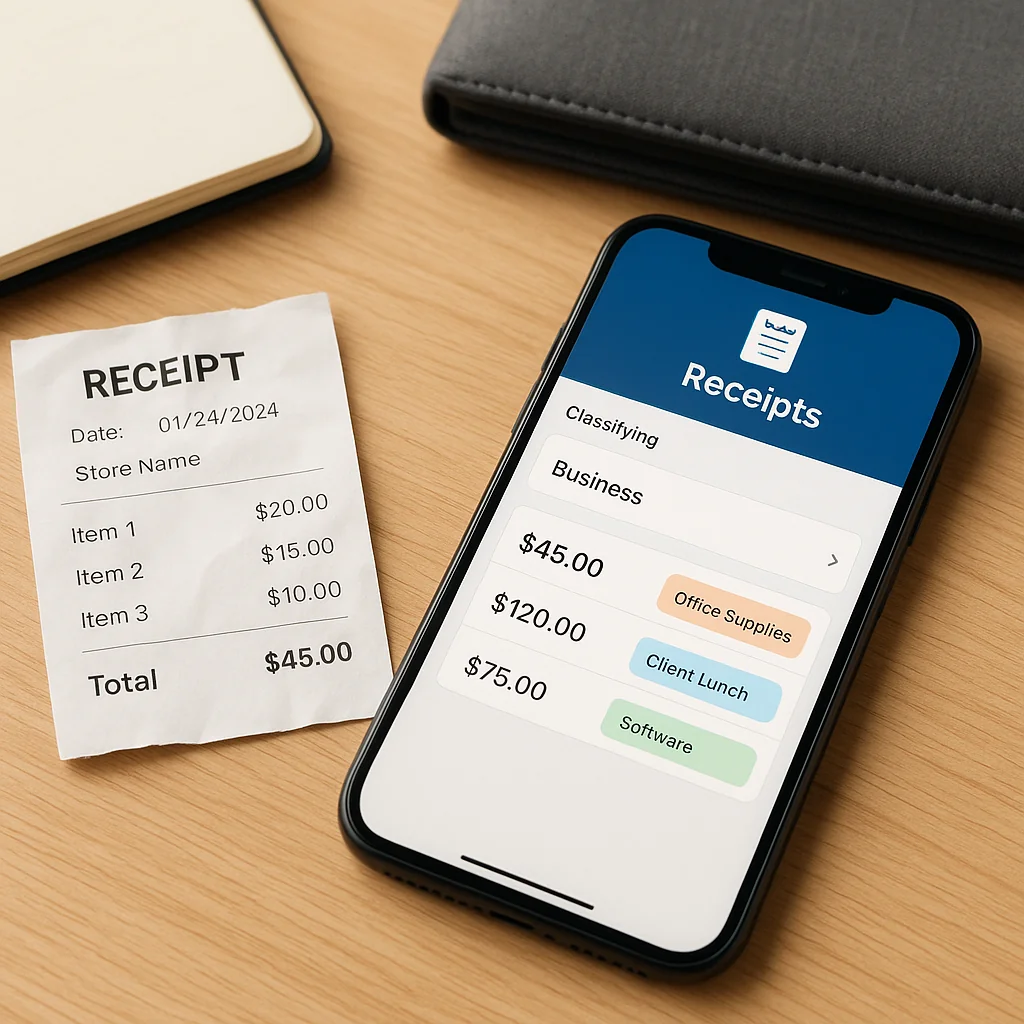
The best receipt organizer apps for small businesses depend on whether you prioritize privacy, deep Gmail and Google Drive integration, or advanced OCR and categorization. For many small businesses and freelancers who use Gmail and Google Drive, the most practical choices are privacy-focused local apps, Google-centric automations that save Gmail attachments into Drive, and lightweight cloud tools that extract key fields from receipts for bookkeeping.
Why organized receipts matter for your business
Keeping receipts organized saves time during bookkeeping, reduces mistakes at tax time, and makes it easy to produce documentation for audits or expense claims. When receipts are automatically categorized by supplier, month, and year, you avoid manual file searching and repetitive renaming. For teams and bookkeepers who work with Gmail and Google Drive, automation reduces friction: invoices and receipts flow into a consistent folder structure where your finance software or human reviewer can find them.
How to choose the right receipt organizer app
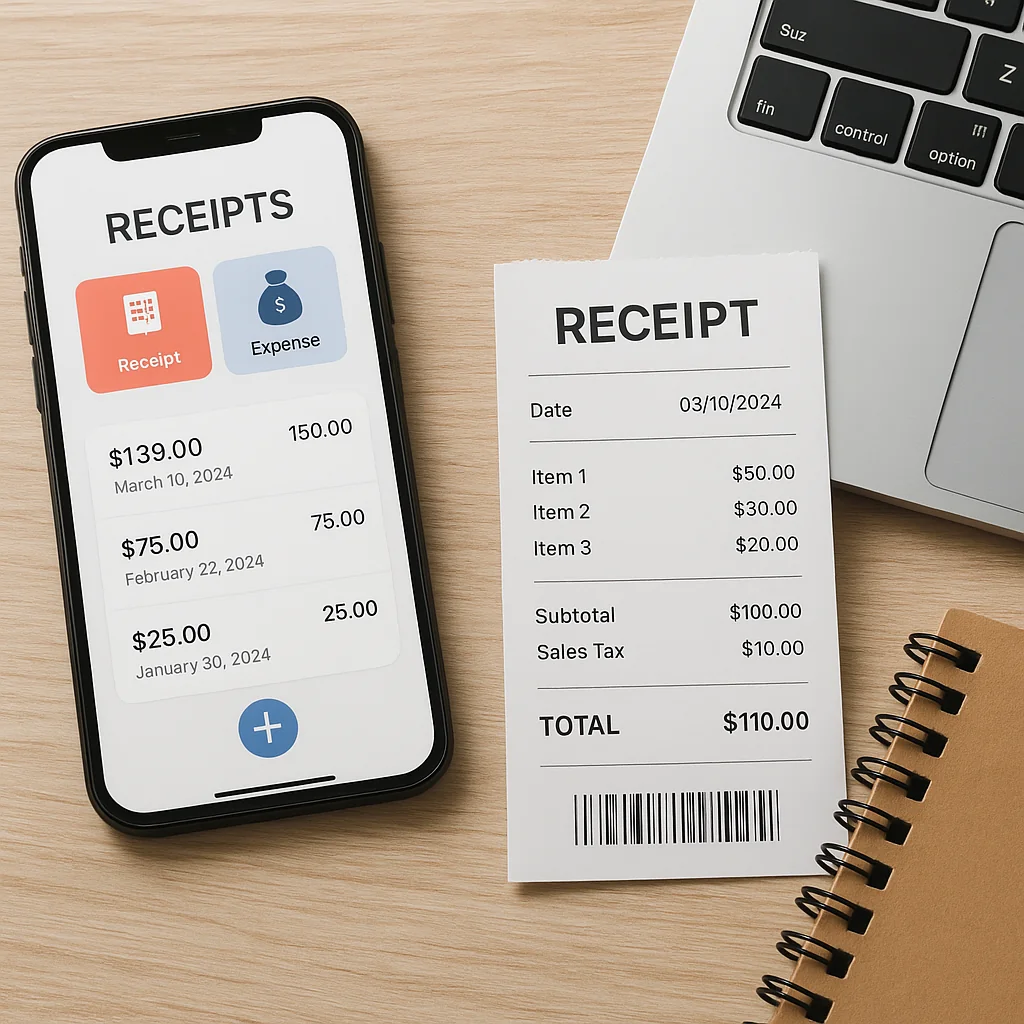
Not every app fits every workflow. Use these decision points to pick the right option for your situation.
1. Where should your data live?
If you’re privacy-conscious, prefer solutions that keep data inside your Google account or on-device. That minimizes exposure to external servers and aligns with strict internal policies and local regulations.
2. How much automation do you need?
Simple needs (save PDF invoices from Gmail into a Drive folder) can be handled by lightweight automations. If you need field extraction (vendor, date, total) and integration with accounting, choose tools with reliable OCR and structured export.
3. Who uses the receipts?
Solo freelancers may value mobile receipt scanner and local apps. Small teams and bookkeepers often prefer centralized Drive folders, shared naming conventions, and permission controls.
4. Cost and scaling
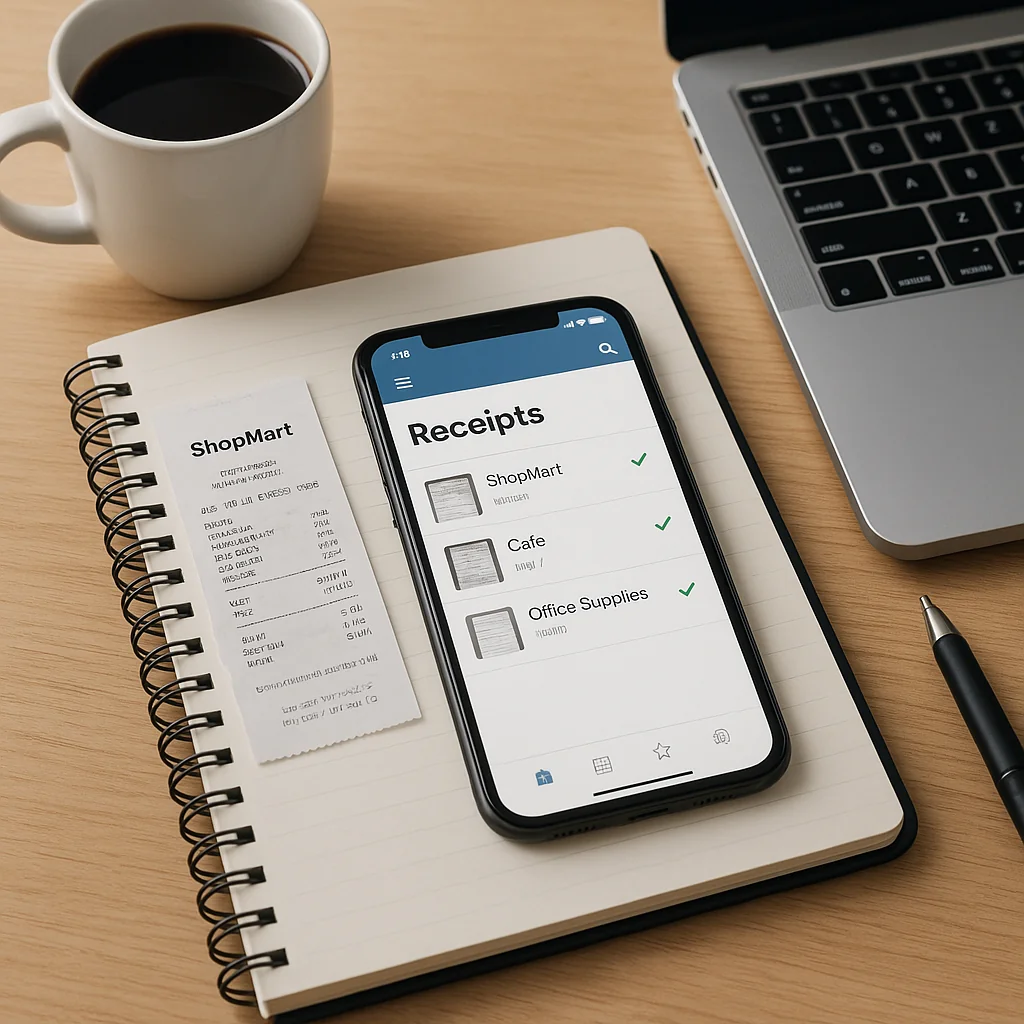
Free options often cover basic automation. Paid plans add features like batch OCR, searchable PDFs, metadata tagging, and priority support. Consider how many receipts you process monthly and whether multi-user access is required.
Types of receipt organizer apps (what each offers)
Below are the broad categories you’ll encounter and what to expect from each.
Google Drive–centric automations
These connect Gmail to Google Drive and automatically save attachments into a folder structure organized by sender, date, or labels. They’re ideal when you already store invoices in Drive and want the automation to live in your Google workspace.
Local / privacy-first scanner apps
These apps store scanned images and extracted text on your device or in your Drive only, avoiding external servers. They’re well suited to businesses with strict data privacy needs or those who handle sensitive financial data.
Cloud OCR and extraction services
Cloud tools provide more advanced field extraction and searchable PDFs. They work well when you need structured invoice data exported to accounting or spreadsheet tools, but they typically process data on third-party servers.
No-code automation platforms
No-code platforms let you design custom flows: filter Gmail for invoices, move attachments into Drive folders, rename files, and notify your bookkeeper. These are flexible but require careful permission and privacy review.
Feature checklist: What to look for
When evaluating any app, confirm it supports the following features you’ll likely need:
- Automatic save Gmail attachments into a Drive folder based on sender, subject, or label.
- Consistent file naming or automatic renaming to supplier_date_amount conventions.
- Searchable PDFs or text extraction to find receipts quickly.
- Folder organization by supplier, month, and year for straightforward bookkeeping.
- Permissions and sharing controls for team access inside Google Drive.
- Export or integration options for your accounting workflow (CSV, Excel, or direct sync).
- Privacy controls: keep data inside your Google account or on-device whenever possible.
Comparison table: free vs paid options and where they fit
The table below summarizes core trade-offs so you can match a solution to your needs.
| Type | Typical cost | Best for | Key benefits | Privacy |
|---|---|---|---|---|
| Basic Gmail → Drive automation | Free–low | Freelancers, small teams | Auto-save attachments, simple folder rules, no manual upload | Data stays in your Google account |
| Mobile receipt scanner (on-device) | Free–one-time | Privacy-focused users, frequent mobile receipts | Offline scanning, immediate upload to Drive, local-only processing | High — on-device or Drive only |
| Cloud OCR / extraction | Paid (per page or subscription) | Businesses needing structured data | Accurate field extraction, searchable PDFs, exports | Lower — external servers process data |
| No-code automation flows | Free tier / paid plans | Teams with custom rules | Flexible routing, conditional rules, multi-step workflows | Depends on connectors and configuration |
Use this table to match your priorities: choose basic Drive automation for low cost and strong privacy, mobile scanner apps for privacy and mobility, cloud OCR for extraction accuracy, and no-code platforms for tailored workflows.
Practical examples: workflows you can set up
Example 1 — Minimal, privacy-first: save invoices from Gmail to Drive
Configure a rule that saves Gmail attachments labeled “invoice” into Drive folders organized by year/month. Rename saved files using supplier_date_amount so they’re consistent for your bookkeeper. This provides instant Google Drive invoices without sending data to external servers.
Example 2 — Mobile-first freelancer workflow
Use a mobile receipt scanner that performs on-device text recognition, then uploads PDFs to a “Receipts/2026/Month” Drive folder. Use file naming conventions so your accountant can batch-import expenses once a month.
Example 3 — Semi-automated bookkeeping with field extraction
Route incoming purchase receipts from Gmail to an OCR module that extracts vendor, date, and total, then writes a row into a Google Sheet. Attach the original PDF in Drive and include a link to the sheet row for easy cross-reference during reconciliation.
Implementation tips for Gmail and Google Drive users in Israel
These practical tips help you set up a reliable system that makes month-end bookkeeping painless.
Use labels in Gmail as triggers
Train your inbox: apply a label like “Invoices” or create a filter that labels incoming receipts. This makes it easy to target the messages you want to capture without manually searching your inbox.
Adopt file naming conventions
Establish a simple naming rule — e.g., supplier_YYYYMMDD_amount — and apply it automatically where possible. Consistent file names speed up search and ensure correct grouping by supplier and date.
Organize Drive by supplier/month/year
Create a top-level folder such as “Finance/Receipts” then subfolders for the year and month. This structure mirrors accounting periods and simplifies compliance with local document retention policies.
Keep an audit trail
When automations rename or move files, log the change either in a Google Sheet or with Drive activity notifications. An audit trail helps during internal reviews or tax audits and maintains trust with stakeholders.
Privacy and compliance considerations
Privacy-conscious businesses should verify where receipt data is processed. If keeping data within Google Drive is a core requirement, prefer apps and automations that operate within your Google account or on-device. For external processing, check data handling policies and whether data is deleted after processing.
Also document your document retention policy and backup strategy. Keep at least the minimum legally required documentation for tax and audit purposes, and decide whether long-term storage will remain in Drive or in a separate archival system.
Costs explained: what you’ll typically pay for
Free solutions handle the basics: saving Gmail attachments to Drive, simple renaming, and limited OCR. Paid subscriptions add value through higher OCR accuracy, bulk processing, team accounts, version history, and priority support.
When evaluating price, estimate the number of receipts you process monthly. Per-page pricing can add up quickly for high-volume businesses; in those cases, subscription plans with monthly allowances are usually more cost-effective.
Common pitfalls and how to avoid them
Pitfall: inconsistent file names
Fix: enforce an automated renaming rule and educate staff about the naming convention.
Pitfall: duplicates in Drive
Fix: build deduplication steps into your automation — for example, skip saving attachments when a file with the same hash or name exists.
Pitfall: lost permissions or shared-folder confusion
Fix: centralize receipts in a finance-owned Drive folder and use shared drives or explicit permissions for bookkeepers. Avoid personal accounts for company finance documents.
Checklist to evaluate a receipt organizer app
Before committing, run through this checklist:
- Does it integrate with Gmail and Google Drive natively or via secure connectors?
- Can it automatically save Gmail attachments and apply naming rules?
- Does it support searchable PDFs or accurate data extraction if you need it?
- Where is data processed — on-device, in your Google account, or externally?
- Does it offer a free tier or trial so you can test without risk?
- How easy is it to set up and maintain without developer resources?
FAQ
How do I automatically save invoices from Gmail to Google Drive?
Create a rule that filters messages by label or sender, then configure an automation to save attachments into a designated Drive folder. Many Gmail add-ons and no-code automation flows can do this without manual downloads.
Is OCR necessary for receipt organization?
OCR is useful when you need to search within receipts or extract fields for accounting. If you only need to archive PDFs for later review, searchable PDFs are nice-to-have but not strictly necessary.
Can I keep all receipt data inside my Google account for privacy?
Yes. Choose tools that operate on-device or use integrations that write directly into your Google Drive without sending copies to external servers. That keeps financial documents under your control.
What’s the best approach for a small bookkeeping team?
Use a shared Drive folder structure, consistent file naming, and automations that route invoices into the correct folder. Combine searchable PDFs with a simple Google Sheet log for manual reconciliation when needed.
Final recommendations
For most small businesses and freelancers who use Gmail and Google Drive, start with a Drive-centric automation that saves Gmail attachments and enforces file naming conventions. If you need stronger privacy, prefer on-device or Drive-only solutions. When you require structured data for accounting, add an OCR-capable tool but review its processing policies carefully.
Whichever path you choose, prioritize workflows that reduce manual steps: label training in Gmail, predictable Drive folders, and automated renaming. That combination delivers the biggest time savings and makes bookkeeping far simpler for you and your accountant.
At InvoDrive, we focus on practical setups for invoice automation that keep data in your Google account and simplify month-end bookkeeping while respecting privacy and local reporting requirements.
 Continue with Google